
Team 2 - TEACH W/ PETE
TA/IA Hiring Dashboard
Table of Contents
-
About The Project
-
Getting Started
- Usage
- Features
About The Project
Our product will facilitate the application submission for TA/IA positions at the
Computer Science department. There will be two types of users: managers and students. Each user already has an assigned role in our databae. Once logged in, our program will redirect the user to a clean and responsive dashboard to navigate for their necessary actions. Managers are able to access a list of courses and students that have applied for a position as a TA or IA. Here, the maanager can then hire and assign applicant to a specific course. Students will be able to access the application as well as check the status of their application.
(back to top)
Built With
(back to top)
Getting Started
The configurations and installations needed to run application on your environment
Prerequisites
Installation
Install NPM packages
npm install
Webpack Configuration
npm init -y
npm i webpack webpack-cli -D
npm run build
(back to top)
Features/Usage
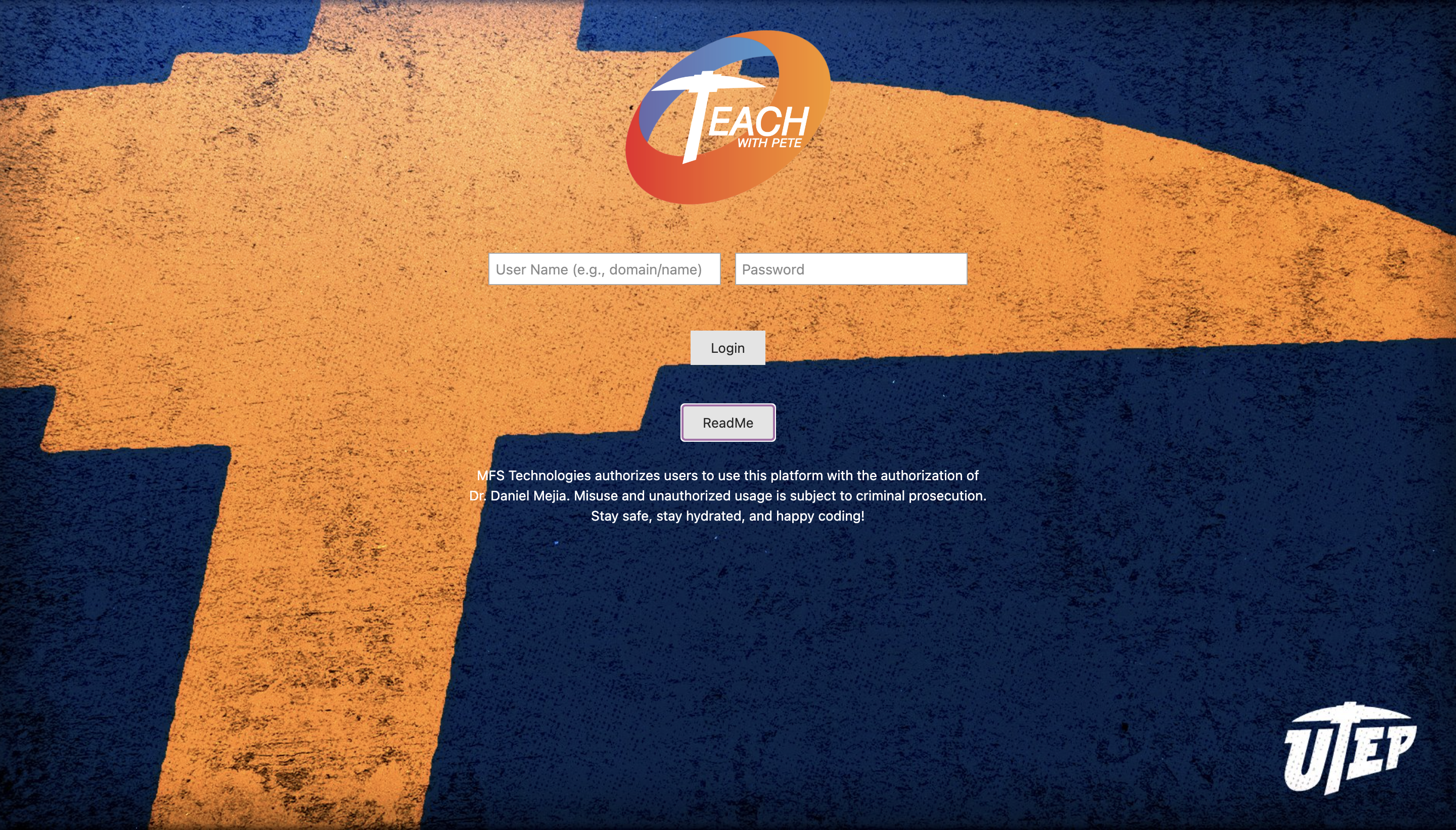
Login Page
- This page is the first page the user will see when they go on our website. Here the user will login using their credentials (username and password) and will be redirected to their page according to their role specification.
- Users have alaready been created with their assigned roles and added to our database using users.py, csvreader.py, and Students.csv provided by Dr. Mejia. Users can't create new accounts. Only predetermined accounts in the database are permitted.
- In order to login as a manager you would use "woody@test.com" and the password password "test123", to sign is as an applicants you would use @test.com and the password "test123."
- This page is found in the index.html file inside of the dist folder.
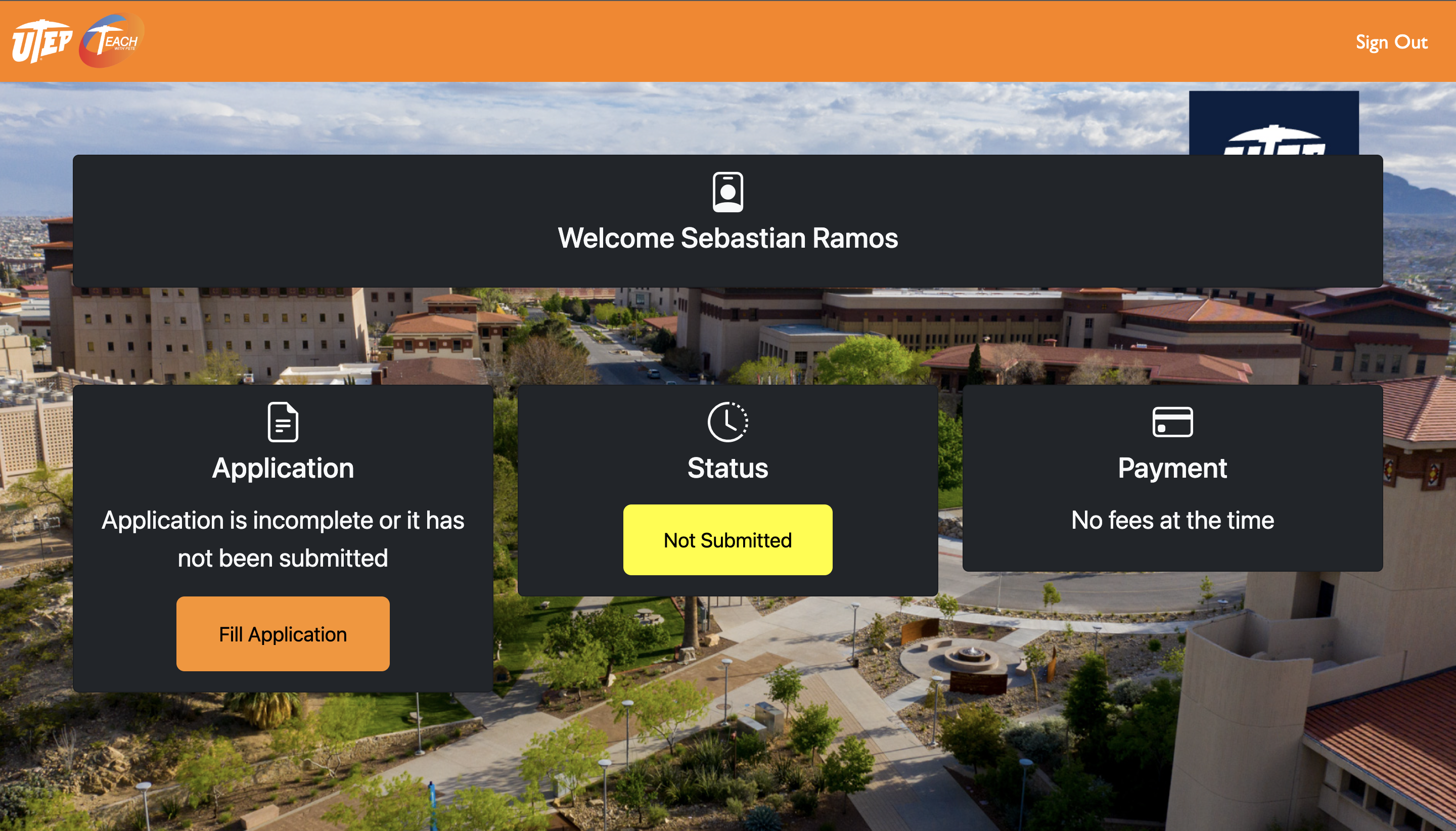
Student Dashboard
- This page will be the main dashboard that the student will have access to. The "Fill Application" button gives the user access to the application form for the IA/TA position. There will be a progress bar that will show the student their progress on their application depending on their status (If they havent completed the application, if submited or in progress, if payed or not and if they have been accepted or not). It is still a work in progress but it will be implemented into the student main page to have easier and faster access.
- This page is found in the student-dashboard.html.
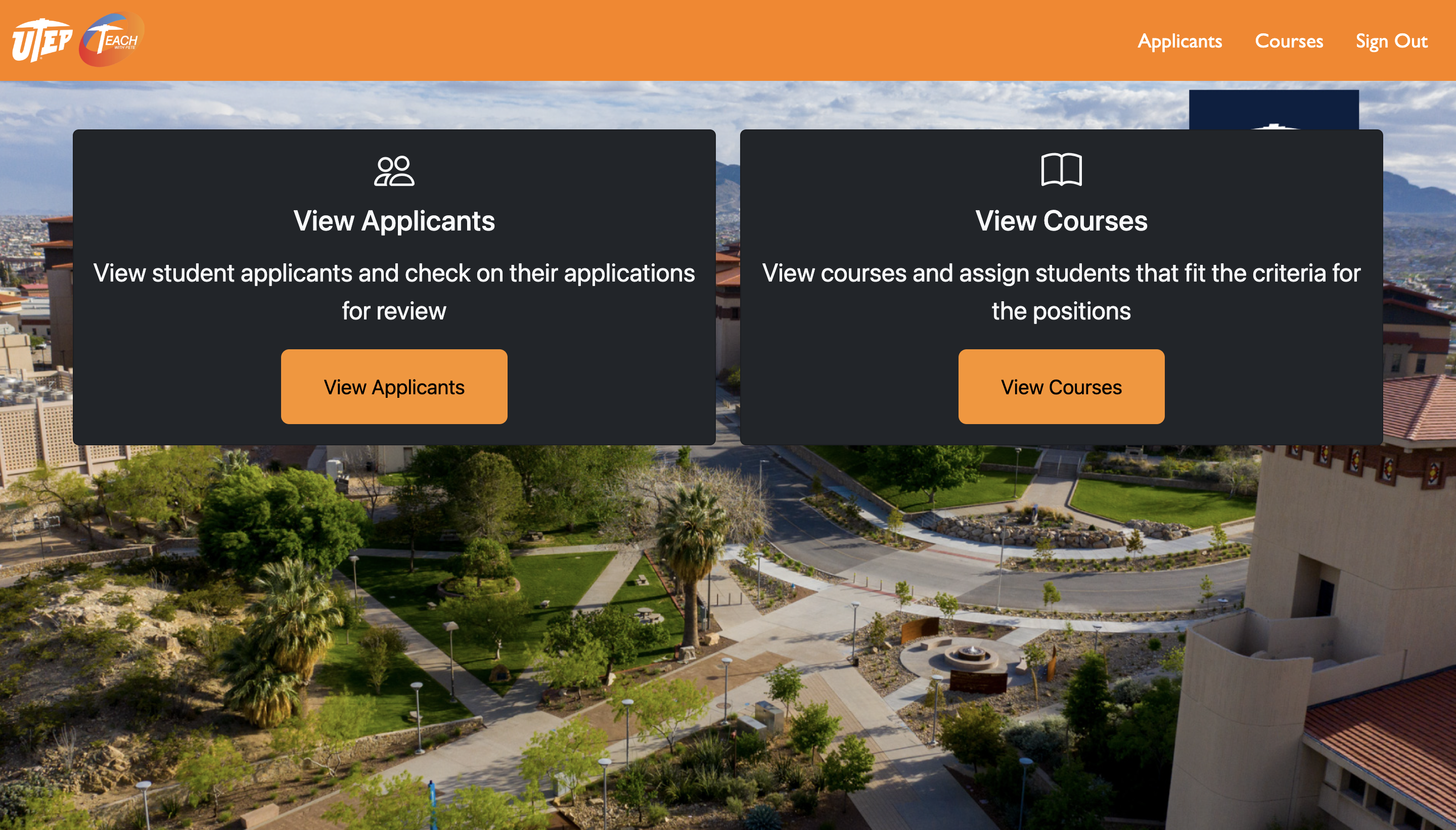
Manager Dashboard
- This page displays the home page of user who has been authenticated as a "manager". Unique features such as assigning "applicants" to pending IA/TA positions, viewing applicants status, viewing applicants schedule, viewing courses for the semester, and a still in work in progress of a notification system that alerts the manager that there are applicants pending to be assigned to a class for a IA/TA.
- This page is found in the manager.html file.
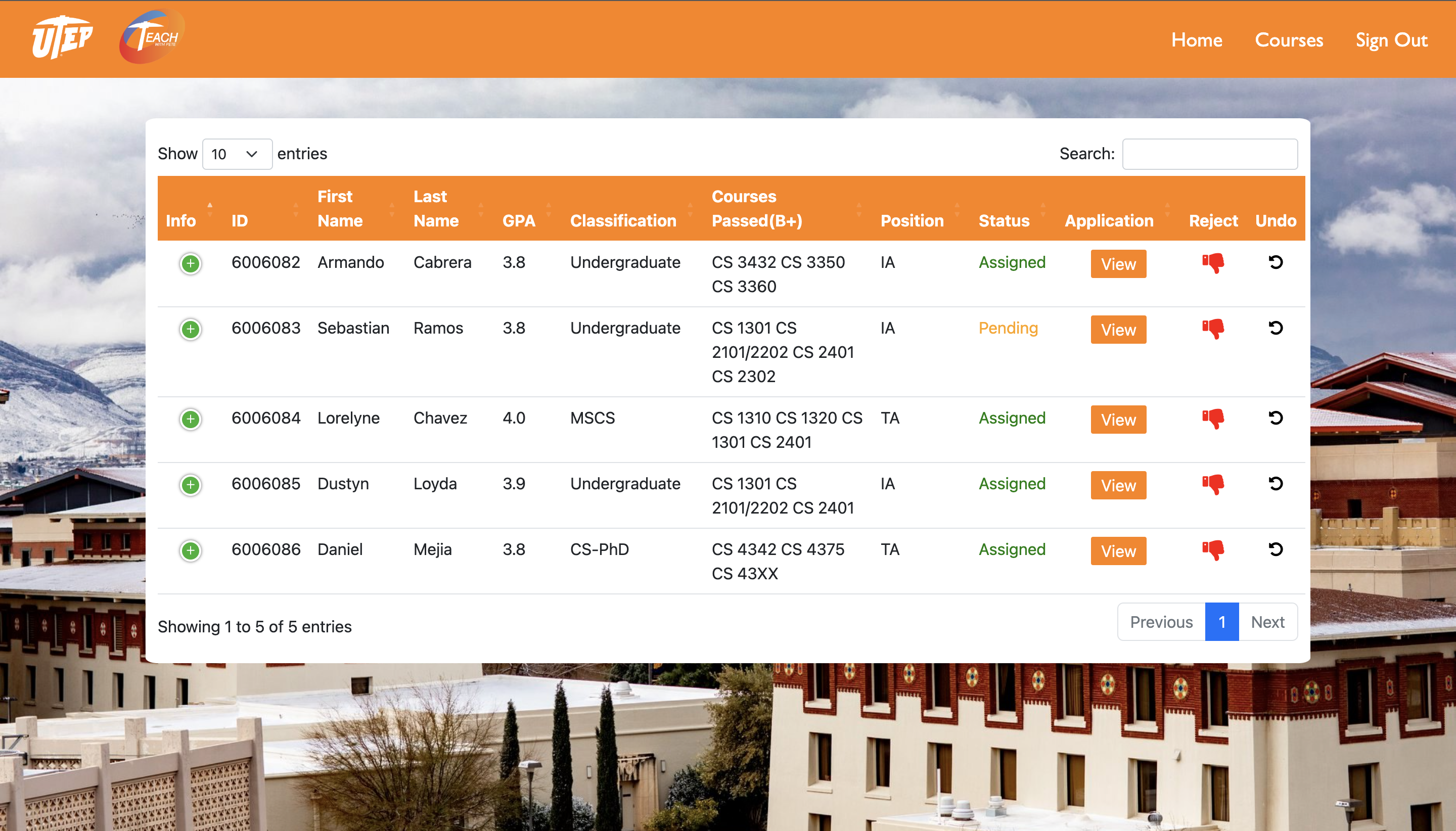
Applicants Page
- This page displays all the applicants information on a table. The table allows the functionality to search and sort applicants by any field. Each applicants schedule is also able to view upon clicking the green plus button under the info column.
- Each applicant can be rejected under the managers discretion, the option to undo any rejection and or assignment is possible.
- This page is found in the view_applicants.html file and view_applicants.js file.
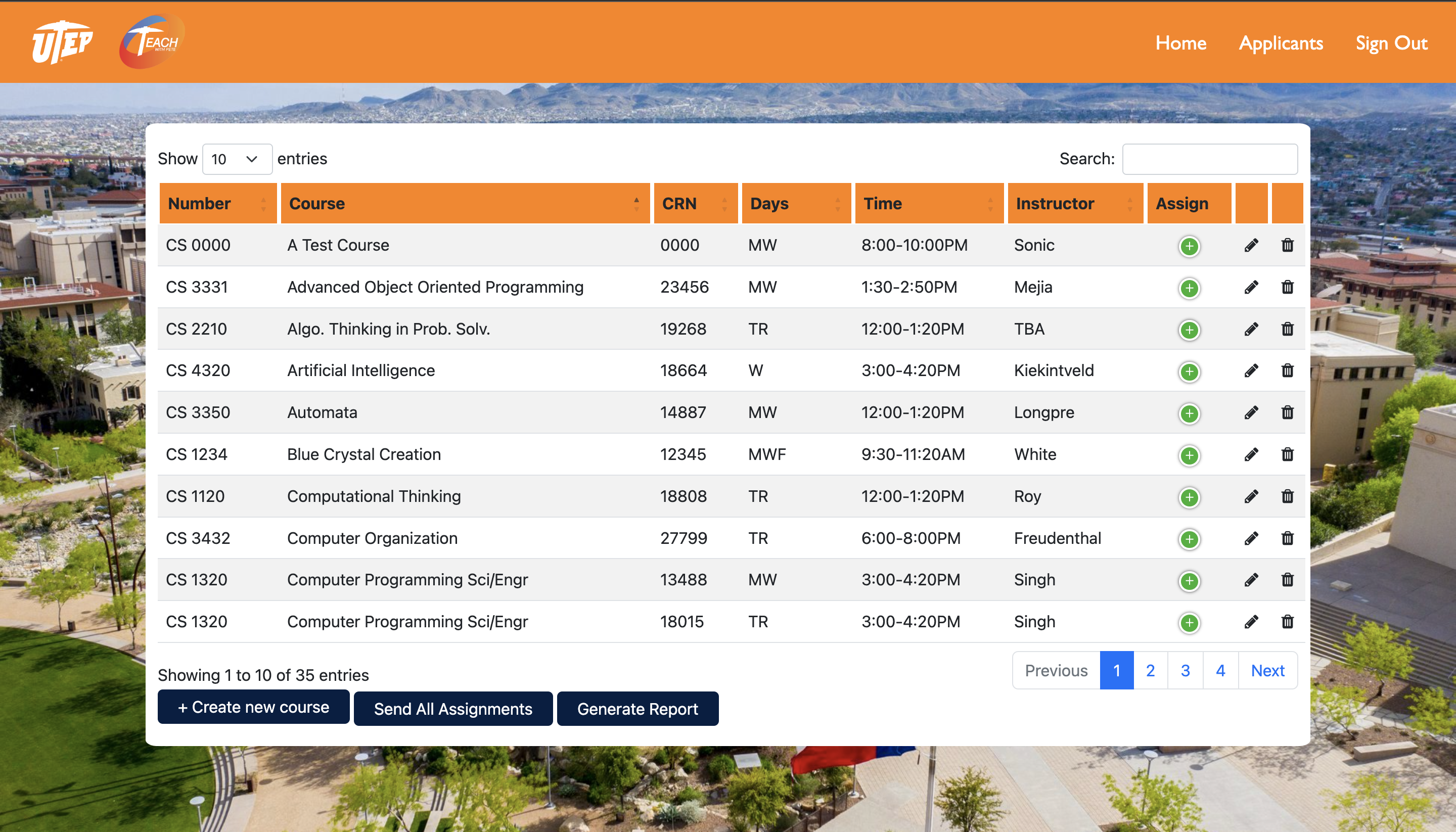
Courses Page
- This page displays all the courses information on a table. The table allows the functionality to search and sort courses by any field, similar to the applicants page.
- each courses can be assigned applicants from dropdown selections upon clicking the green plus button under the Assig column.
-Each course can be edited or removed with the pencil and trash icons next to them. There is also the functionality to add a new course, as long as the Course number, name, and CRN do not already exist.
- This page is found in the view_courses.html file and the view_courses.js file.
- This page displays the application form that will prompt the logged in "student" user of basic questions that are needed to be a considered candidate for the position. Each input field will be stored upon submission, and saved for later if the user decides to finish it some other time. Once a "student" user is logged in, the web app automatically checks if they have an exsisting application already whether it has been completed and submitted or not completed, but still has the users previous responses.
- Once the "student" user selects their proper classification. Depending whether they are an "Undergraduate" or "Graduate", they will be prompt different questions as they progress through the application. If they are a Freshmen, Sophomore, Junior, or Senior they can only apply as an IA or PL. If they are Graduate students, they can only apply to be a TA.
- Before the student either submits or saves as a draft, the page will notify them that their progress will be submitted completly or saved if they decide to do either action. Once they complete the application, they will be able to review their responses all at once and have the option to go back and edit their responses or be redirected to the checkout page where they will be prompt to enter their credit card credentials to pay for the application submission fee.
- Once fully paid for, they will be redirected back to the student dashboard home page.
- This page is found in the form.html file along with the features in form.js file, and the checkout page in form-checkout.html and form-receipt.html

(back to top)